Direct Debit · Guides
Use the Portal
Manage charges, batch uploads, reports, API keys and webhooks from the Monato Portal.
The Monato Portal is the web interface for your direct debit operations. Every merchant has access, with no setup beyond a Monato account.
Open the Portal at https://portal.directdebit.monato.com and log in with your Monato account credentials.
What you can do
| Section | Capabilities |
|---|---|
| Charges | List, search and view charge details |
| Instruments | List, search and view instrument details |
| Batch upload | Upload CSV files to submit charges in bulk |
| Reports | Generate and download charge status and reconciliation reports |
| Settings | Configure webhook endpoints and manage API keys |
Most operations in the Portal are also available through the API. Use the Portal for manual workflows, ad-hoc operations and configuration, and the API for automated integrations. The Portal is the only place where you can generate API keys and configure webhook endpoints.
Reset your password
If you forgot your password, or a previous reset code expired, request a new code from the login page.
-
On the login page, click Forgot your password?
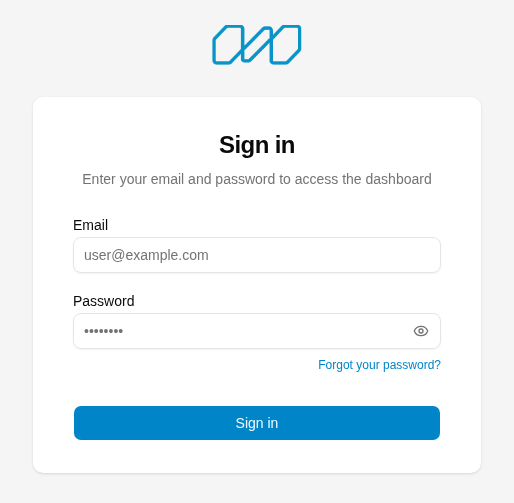
Login page The Forgot your password? link is below the password field.
-
Enter the email address of your Monato account and click Send instructions.
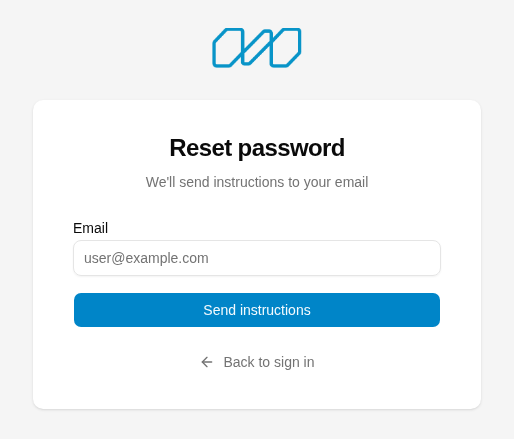
Reset password Enter your email and click Send instructions.
-
A confirmation dialog appears. Click Continue.
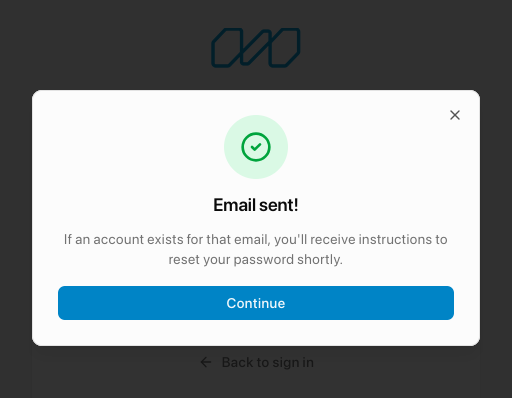
Email sent The dialog is shown whether or not the email is registered.
-
Check your inbox for an email with a 6-digit verification code. The code is valid for 1 hour.
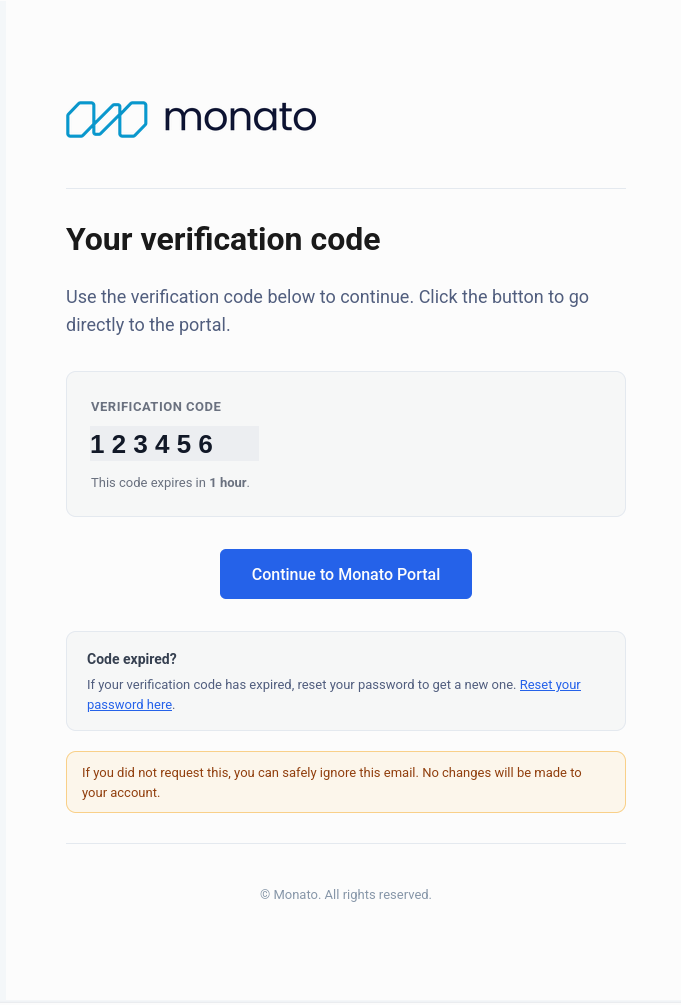
Password reset email The email shows the code, the Continue to Monato Portal button and a Reset your password here link for expired codes.
-
Click Continue to Monato Portal in the email. On the New password page, enter your email, the verification code and your new password.
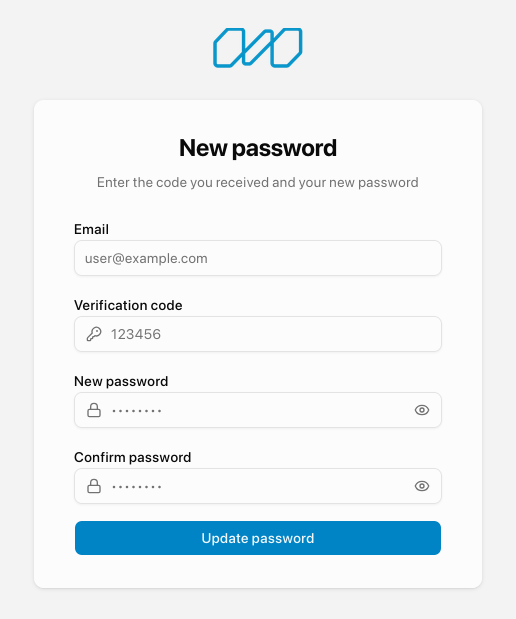
New password Enter your email, the code, and your new password twice, then click Update password.
For security, the Portal doesn’t reveal whether an email address is registered: the confirmation dialog is shown either way. If the email doesn’t arrive within a few minutes, check that you used the address of your account and look in your spam folder before requesting another code.
If the code expired
Codes expire 1 hour after they are sent. If yours expired:
- Open the reset email and click Reset your password here, or go back to the login page and click Forgot your password? again.
- Enter your email and click Send instructions to get a new code.
- Use the new code within 1 hour on the New password page.
Batch upload
Upload bulk charge files without setting up an SFTP connection. It uses the same file format and processing pipeline as SFTP. Use it for manual submissions; for automated, scheduled submissions, SFTP is the better fit.
- Go to Batch Upload in the main menu.
- Click Upload File and select your CSV charge request file.
- The Portal validates the file and shows an initial pre-validation result.
- If pre-validation passes, the file is scheduled for processing.
The file must be a valid CSV that follows the Batch file specification. The file name can only contain letters, numbers, hyphens (-) and underscores (_), with no spaces or special characters. Example: charges_20251120_batch_1.csv. Files can be up to 30 MB, with no fixed limit on the number of charges. See Limits.
After upload, the Portal shows the processing status of your file:
| Status | Description |
|---|---|
| Pending | The platform accepted the batch and is about to schedule processing |
| Processing | Charges are being validated individually |
| Processed | Charges were created and will be submitted to the banking network |
| Errored | At least one row failed validation, so no charges were created. Download the error report from the upload. See Validation error file columns |
As with SFTP, Monato generates response files at each stage. Download them from Reports.
Reports
Generate and download charge reports for any date range, for reconciliation, finance operations and auditing.
- Go to Reports in the main menu.
- Select the report type and set the date range.
- Click Generate Report.
- Download the report as a CSV file.
| Report | Contents |
|---|---|
| Charges Report | A summary of charges grouped by status (confirmed, declined, canceled, chargeback) for the date range. Use it to track collection performance and spot decline patterns. |
| Chargebacks Report | Every chargeback processed in the date range, with the original charge details and the chargeback date. Use it for reconciliation and to track chargeback exposure. |
Reconcile a settlement period
- Generate a Charges Report for the settlement period.
- Filter for
confirmedcharges to find collected amounts. - Cross-reference any
chargebackentries for the same period to calculate net collected funds. - Compare the totals with your internal ledger or bank statement.
See Chargebacks for how chargebacks affect your balance.
Settings
API keys
Go to Settings → API Keys to generate and manage keys for the Direct Debit API.
- Click Generate New Key.
- Select the environment: Sandbox or Production.
- Optionally add a label, such as the service or integration that will use it.
- Click Create. The key is shown once: copy it and store it securely.
Key generation is instant and needs no approval. You can create as many keys as you need per environment.
To revoke a key, find it in the list and click Revoke. It takes effect immediately: requests with a revoked key get 401 Unauthorized.
Revoked keys can’t be restored. If you revoke a key by mistake, generate a new one and update your integration.
Keep keys in environment variables or a secrets manager, never in source code. Use one key per service or integration so you can revoke access individually, and rotate keys periodically or right away if you suspect exposure.
Webhooks
Go to Settings → Webhooks to set the endpoint where Monato delivers events.
- Click Add Endpoint.
- Enter the endpoint URL. It must be a publicly accessible HTTPS URL.
- Enter the Authorization header value Monato should send with every delivery. Your endpoint uses it to verify the request came from Monato.
- Click Save.
You can update the URL or Authorization value of an endpoint, or remove it, from the webhook settings list. See Webhook events for what Monato sends.